Live transcription

Live voice to text free for everyday speech

Live voice to text free workflows help you capture spoken ideas while they are still fresh. Speak into a supported device, review the transcript, and shape it into notes, drafts, or searchable text.

Review before sharing

Who it helps

Who needs live voice to text?

Live capture is useful whenever typing would interrupt the moment. The same audio to text workflow can support quick notes, field updates, and first drafts.

Spoken note before transcription Organized transcript after voice capture Spoken input Text output

Drag the divider to compare a rough spoken note with an organized transcript.

Spoken inputText output

Format timeline

How live speech capture evolved

The path from recorded sound to instant text has moved through several practical stages.

  1. Sound becomes recordable

    The phonograph made it possible to preserve spoken sound for later listening and transcription.

  2. Speech research begins

    Early laboratories explored how machines could recognize limited spoken words and commands.

  3. Mobile dictation expands

    Phones and portable computers made voice notes and basic speech recognition part of everyday workflows.

  4. Live transcripts fit browser workflows

    Modern voice tools can turn spoken input into editable text that is ready for review, search, and reuse.

Choose an input

Live microphone or uploaded audio?

Both routes can produce useful audio to text results, but they fit different moments and levels of preparation.

Live microphone
Imported recording

Best for

Live microphone

Ideas, notes, and spoken updates as they happen

Imported recording

Interviews, meetings, lectures, and saved voice memos

Starting point

Live microphone

Speak directly into the capture interface

Imported recording

Select an existing audio file

Timing

Live microphone

Text develops during the recording

Imported recording

Text begins after the file is processed

Preparation

Live microphone

Check your microphone and speaking environment

Imported recording

Check the file opens and contains clear audio

Review need

Live microphone

Correct wording while the thought is still fresh

Imported recording

Review the completed transcript against the recording

Ideal output

Live microphone

Quick notes, outlines, and first drafts

Imported recording

Reference text, quotes, summaries, and archives

Practical uses

Who uses audio to text workflows?

Different speakers need different kinds of text output, from a private reminder to a polished working document.

Students

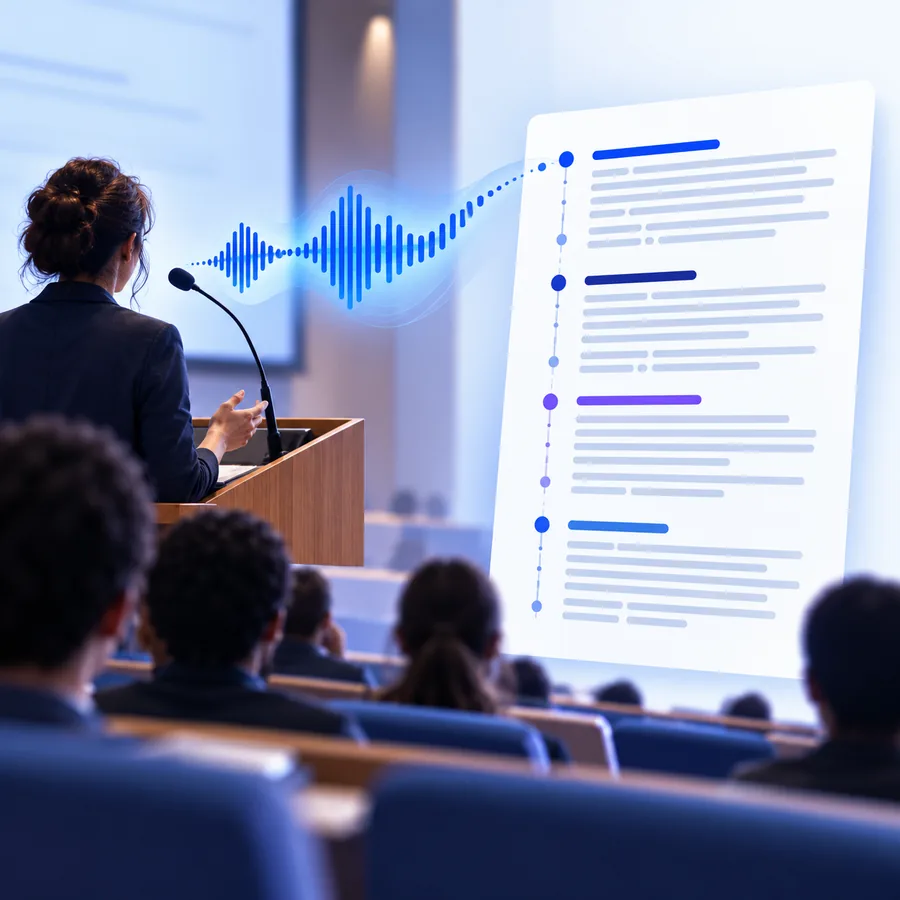
A student records a spoken explanation after class instead of trying to type every idea.

The transcript becomes a review outline that can be corrected and organized later. For longer recordings, the mp3 audio to text converter online free page explains a file-based route.

mp3 audio to text converter online free
Researchers

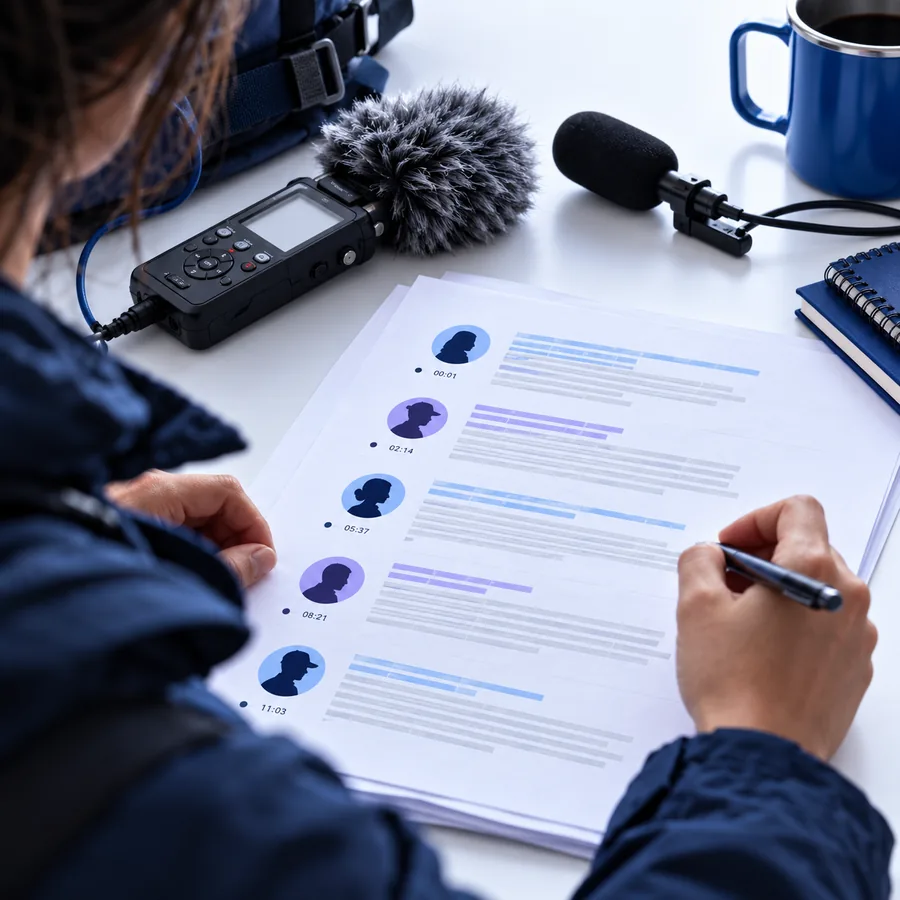
A researcher captures observations or interview prompts while moving between locations.

Live text creates a searchable starting point, while the voice to text free guide covers a broader set of spoken-input workflows.

voice to text free

Creators

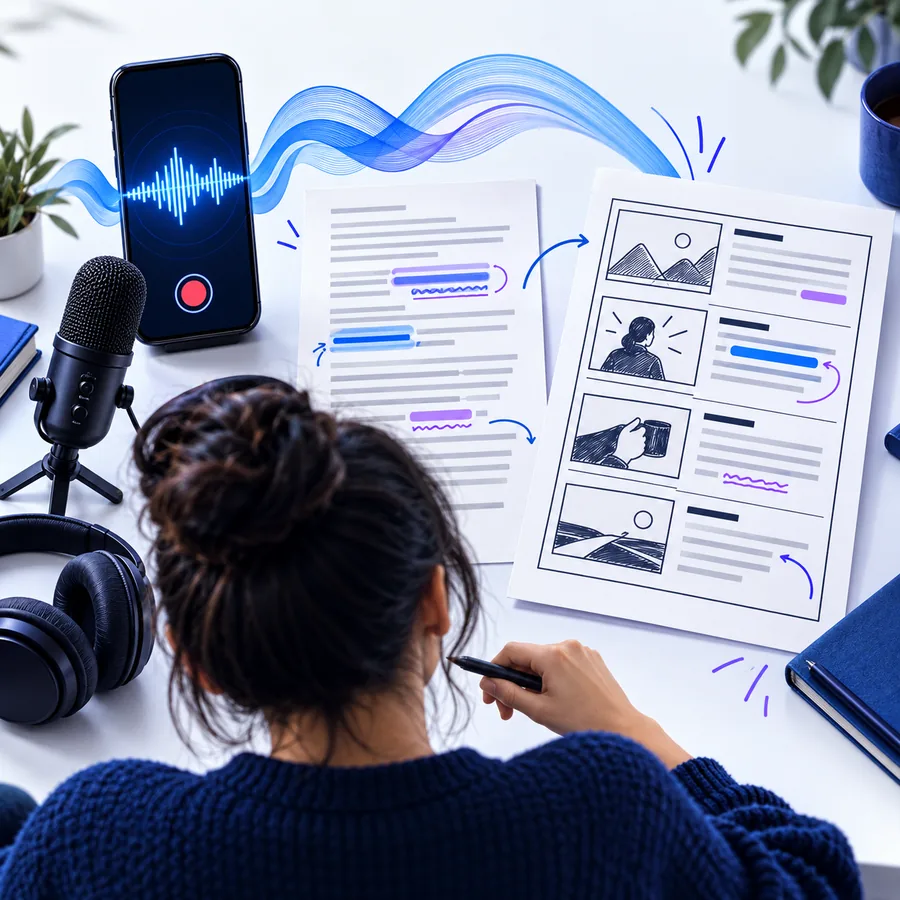
A creator speaks a video outline or caption draft before opening an editing tool.

The resulting text gives the creator a rough script to refine instead of a blank page. When the source is a saved MP3, the mp3 audio to text converter online free route keeps the next step clear.
mp3 audio to text converter online free

Field teams

A team member records a short status update during a site visit or commute.

A live transcript can turn the update into shareable notes, and the voice to text free overview helps compare other speech-first options.

voice to text free

Output examples

What a finished transcript can look like

These examples show common transformations from spoken input into text that is easier to review and reuse.

  • Transcript of a short spoken note Notes
    1
    A rough voice memo becomes a concise action list. Input: spoken project update
  • Transcript of an interview excerpt Interview
    2
    A recorded question-and-answer segment becomes searchable text. Input: interview audio
  • Transcript of a meeting summary Summary
    3
    A spoken recap is shaped into clear paragraphs for later editing. Input: meeting recap

Tool workflow

Common import steps

Whether you speak live or bring in a recording, a short review loop helps keep the audio to text result useful.

  1. 1

    Choose the source

    Start with the microphone for live speech, or select a saved recording when the audio already exists.

  2. 2

    Capture or import

    Speak in complete thoughts or import the file, keeping background noise and overlapping speakers in mind.

  3. 3

    Review the text

    Check names, numbers, punctuation, and unclear phrases before copying the transcript into your working document.

Start with speech

Make your next spoken note easier to use

Bring a live idea, voice memo, or short recording into a transcript workflow, then review the words before you share or publish them.

Start live transcription
  • Capture ideas before they disappear
  • Turn spoken drafts into editable text
  • Review the transcript before reuse

Variant FAQ

Live voice to text questions

Answers to common questions about using live speech as a starting point for text.

It converts speech captured as you talk into text that can be reviewed and edited. Common uses include notes, outlines, interview prompts, meeting recaps, and first drafts.

It can reduce the amount of typing needed, especially for rough ideas and spoken notes. You should still review the transcript because names, punctuation, numbers, and unclear speech may need correction.

Yes. Live voice to text starts while you are speaking, whereas file transcription begins with an existing recording. Live capture suits immediate notes; imported audio suits interviews, lectures, and saved voice memos.

Use a quiet environment, keep the microphone close enough to hear clearly, and speak in complete phrases. After capture, check proper names, technical terms, figures, and any section affected by background noise.

Start converting
Start converting